
- Revitive Medic Coach device
- Power adaptor
- Electrode Body Pads x 1 pair
- Electrode cord
See ‘What’s in the box?’ to help identify the parts.
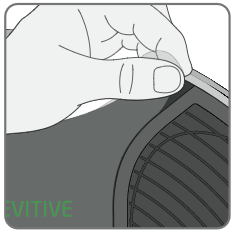
Remove protective film from the device and dispose of responsibly. The device will not operate unless this is removed.
You can use an electrical socket at any time but this is essential when Revitive’s battery power level is low. The battery recharges when Revitive is connected to an electrical socket and a stimulation program is not running. The battery indicator icon will constantly scroll during charging; when the battery is full, scrolling will stop.

If you turn Revitive off and the low battery level indicator blinks for 10 seconds, the battery requires recharging.
The app will also warn you if Revitive’s battery is low and needs charging.
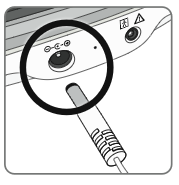
Plug the small end of the power adapter’s power cord into the power adaptor port on the side of Revitive.Plug the power adaptor into the nearest electrical socket. This will start charging the battery. Note that charging does not take place whilst a stimulation program is running.
A full charge will take approximately 4.5 hours.Once fully charged, the full battery indicator will stay illuminated until the power adaptor is unplugged from the device or the electrical socket.
A full charge enables approximately 6 hours of use - 12x 30 minute sessions.


Note: You will need to be connected to the internet to download the app and complete the setup process.
Note: The Revitive app is provided free of charge.
Note: Compatible with Bluetooth, Apple iOS and Android OS. Phones have various model numbers and operating system (OS) versions and not all of them may be compatible with the Revitive app. Version details can be found in your phone settings. If in doubt please visit Is my phone compatible or check with the phone manufacturer.

Once the App has downloaded to your phone follow the instructions to set up your Revitive Account. A Revitive account is required to secure your data and provide the appropriate therapies and guidance.
Note: The email address you want to use for your Revitive account must be available on your phone to be able to complete the email verification process. To keep your personal information safe we recommend that you keep your phone up to date with the latest software from your phone manufacturer, and use identity confirmation like a PIN or fingerprint to secure your phone.
a Check that Bluetooth on your phone is switched on. If you are unsure, go to Settings on your phone and look for Bluetooth, check that it is enabled. Note that Android devices may ask whether the Revitive app can use Location Services. Please accept this as it’s required for the Bluetooth connectivity to work as expected.
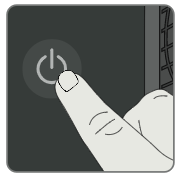
b As directed by the wizard, press and hold the POWER button on the Revitive device until you see the Bluetooth symbol flashing on Revitive’s control panel. This indicates that Revitive is in Bluetooth pairing mode and is ready to connect to your mobile phone.Follow the pop-ups on screen.
c After a short time, the app will find your Revitive and connect. When the connection is made, the Bluetooth symbol on Revitive will stop flashing and remain illuminated. The app will switch to display the Dashboard screen. If a problem occurs, please refer to the Troubleshooting.

Once you have successfully connected your Revitive and the app, you will meet Rosie, our integrated virtual Revitive leg expert. She is designed to guide, monitor, and support you throughout your therapy journey to help you get the most out of using Revitive. She helps set up your therapy, provides daily guidance and information, and performs regular check-ins and end of plan assessments to see how you’re progressing. Follow her on-screen instructions to create your therapy plan.
Introducing the Home Screen
You will see the Home screen every time you open the Revitive app.
You can always get back to the Home by pressing. This will always be at the bottom of the screen, no
matter where you are in the app
Comments
Article is closed for comments.